Starting with digital drawing can be exciting but also overwhelming due to the variety of options available. The RubensTab T11 Pro stands out as the best overall choice for beginners because of its versatility as a standalone device, eliminating the need for a separate computer. For those on a budget, the XPPen StarG640 offers solid performance in a compact size at an affordable price. Meanwhile, the HUION Kamvas 13 (Gen 3) provides a great balance of screen quality and pressure sensitivity for users ready to upgrade. As with any tech, tradeoffs include price, portability, and learning curve, so continue reading for the full breakdown to find your perfect fit.

Turn the school run and nap time into listening time
- Thousands of audiobooks, podcasts and originals
- Listen on your phone, tablet or Echo — also offline
- Cancel anytime
Complete the kit


Key Takeaways
- Standalone tablets significantly simplify setup, making them ideal for absolute beginners.
- Screen quality and pen sensitivity are key factors that distinguish higher-end models from entry-level options.
- Compact size is appealing but often limits drawing space, which can impact workflow and comfort.
- Budget models tend to have fewer shortcuts and lower pressure levels, affecting creative flexibility.
- Build quality and included software vary widely, influencing long-term value and user experience.
| RubensTab T11 Pro Standalone Drawing Tablet |  | Best Overall for Portability and All-in-One Creativity | Display: 10.1-inch Full HD IPS (1920×1200P) | Battery: 5800mAh, up to 5 hours of use | Charging: USB-C | VIEW ON AMAZON | See Our Full Breakdown |
| HUION Kamvas 13 (Gen 3) Drawing Tablet with Screen and 16K Pressure PenTech 4.0 |  | Best for Precise, Professional-Grade Artwork in a Compact Form | Display: 13-inch full-laminated anti-glare glass | Pen Pressure Sensitivity: 16,384 levels | Color Coverage: 99% sRGB, 90% Adobe RGB | VIEW ON AMAZON | See Our Full Breakdown |
| T8 Standalone 8-inch Drawing Tablet – No Computer Needed |  | Best Compact Standalone for Basic Creativity on the Move | Display: 8 inches, 1200×800 resolution | Operating System: Android 13 | Processor: MTK Quad-Core | VIEW ON AMAZON | See Our Full Breakdown |
| HUION Inspiroy H1060P Graphics Drawing Tablet, 10 x 6.25 inches, 12+16 Hot Keys |  | Best for Large Workspace and Customizable Workflow | Working Area: 10 x 6.25 inches | Stylus: Battery-free PW100 with tilt support | Shortcut Keys: 12 programmable press keys and 16 soft keys | VIEW ON AMAZON | See Our Full Breakdown |
| Huion Inspiroy H640P 6×4 inch Drawing Tablet with 8192 Pen Pressure |  | Best Compact and Affordable for Basic Digital Art | Active Area: 6×4 inches | Pen Pressure Levels: 8192 | Resolution: 5080 LPI | VIEW ON AMAZON | See Our Full Breakdown |
| XP-Pen Artist 12 (3rd Gen) 11.9″ Drawing Tablet with Screen, X4 Pen, AG Glass |  | Best Overall for Portability and Professional Results | Display Size: 11.9 inches | Resolution: 1920×1080 Full HD | Color Accuracy: 99% sRGB, ΔE<1.5 | VIEW ON AMAZON | See Our Full Breakdown |
| GAOMON S620 Graphics Drawing Tablet, 6.5×4 inches, 8192 Pressure Levels, 4 Hot Keys |  | Best for Portability and Versatile Compatibility | Active Area: 6.5 x 4 inches | Pressure Levels: 8192 | Report Rate: 266 PPS | VIEW ON AMAZON | See Our Full Breakdown |
| XPPen StarG640 Digital Graphic Drawing Tablet 6×4 Inch with Battery-Free Stylus for Mac, Windows, Chromebook |  | Best for Compact Versatility and Basic Digital Art | Size: 6×4 inches | Stylus: Battery-free PN01 | Compatibility: Mac, Windows, Chromebook | VIEW ON AMAZON | See Our Full Breakdown |
| Wacom Intuos Small Wired Graphics Drawing Tablet with Pen and Software |  | Best for Precise Control and Software Compatibility | Technology: EMR (Electromagnetic Resonance) | Connectivity: Wired | Size: Small | VIEW ON AMAZON | See Our Full Breakdown |
| XPPen Artist 13.3 Pro Drawing Tablet with Screen, 16K, Full-Laminated |  | Best for Enthusiasts Wanting a High-Resolution Display | Display Size: 13.3 inches | Color Gamut: 88% NTSC (Adobe RGB ≥ 91%) | Resolution: FHD (1920×1080) | VIEW ON AMAZON | See Our Full Breakdown |
| HUION Kamvas 13 (Gen 3) Drawing Tablet with Screen, Dual Dial, 13.3″ |  | Best Overall for Versatile Artists | Screen Size: 13.3 inches | Color Accuracy: Avg. ΔE<1.5 | Display Colors: 16.7 million | VIEW ON AMAZON | See Our Full Breakdown |
| 11″ Standalone Drawing Tablet, Portable PicassoTab X11 |  | Best for Portable Beginners Who Want Zero Setup | Display: 11 inch 2K laminated screen | Stylus: 4096-level pressure-sensitive stylus | Processor: Octa-core | VIEW ON AMAZON | See Our Full Breakdown |
| PicassoTab 10″ Standalone Drawing Tablet, No Computer Needed, Portable, A10 |  | Best for On-the-Go Sketching and Beginners on a Budget | Display: 10-inch laminated screen | Processor: Octa-core | RAM: 6GB | VIEW ON AMAZON | See Our Full Breakdown |
| XPPen Deco 01 V3 10×6 Drawing Tablet with Battery-Free Stylus and 8 Shortcut Keys |  | Best for Larger Workspaces and Custom Workflow | Active Area: 10 x 6.25 inches | Pressure Sensitivity: 16,384 levels | Stylus: Battery-free, tilt support up to 60 degrees | VIEW ON AMAZON | See Our Full Breakdown |
| UGEE M708 Drawing Tablet, 10×6 inch Large Active Drawing Space |  | Best for Budget-Conscious Beginners Wanting a Large Drawing Area | Active Drawing Space: 10 x 6 inches | Pressure Sensitivity: 16,384 levels | Stylus Technology: Passive stylus | VIEW ON AMAZON | See Our Full Breakdown |
| digital drawing tablets for beginner | Connectivity |
|---|---|
| RubensTab T11 Pro Standalone D | — |
| HUION Kamvas 13 | USB-C to USB-C, dual-interface |
| T8 Standalone 8-inch Drawing T | — |
| HUION Inspiroy H1060P Graphics | OTG, USB |
| Huion Inspiroy H640P 6×4 inch | — |
| XP-Pen Artist 12 | USB-C, multi-interface |
| GAOMON S620 Graphics Drawing T | — |
| XPPen StarG640 Digital Graphic | — |
| Wacom Intuos Small Wired Graph | Wired |
| XPPen Artist 13.3 Pro Drawing | USB-C |
| HUION Kamvas 13 | USB-C single cable |
| 11" Standalone Drawing Tablet | — |
| PicassoTab 10" Standalone Draw | — |
| XPPen Deco 01 V3 10×6 Drawing | USB-C to USB-C, adapters included |
| UGEE M708 Drawing Tablet | USB-C with adapters |
More Details on Our Top Picks
RubensTab T11 Pro Standalone Drawing Tablet
The RubensTab T11 Pro stands out as the most versatile standalone option, combining a portable 10.1-inch Full HD display with pre-installed professional drawing apps. Unlike the HUION Kamvas 13, which requires connection to a device, this tablet offers true independence, making it ideal for artists who want to sketch anywhere without extra equipment. However, its battery life is limited to around 5 hours, which may not suit long sessions. The high-resolution display and responsive pressure-sensitive pen make it feel natural for beginners and experienced artists alike, though the lack of expandable storage could be a drawback. This pick makes the most sense for users seeking an all-in-one device that combines portability with ready-to-use software.
Pros:- Portable and completely standalone, no computer needed
- High-resolution display with vibrant colors
- Responsive pressure-sensitive pen for natural drawing experience
- Pre-installed professional drawing apps and tutorials
Cons:- Battery life limited to approximately 5 hours
- No mention of expandable storage or additional ports
- Requires charging via USB-C, which may be inconvenient for some
Best for: Beginners and hobbyists who need a portable, standalone device for sketching on the go
Not ideal for: Artists requiring longer creative sessions or extensive storage, due to limited battery life and no expandable storage
- Display:10.1-inch Full HD IPS (1920×1200P)
- Battery:5800mAh, up to 5 hours of use
- Charging:USB-C
- Built-in Media:Digital Pen, Stylus, Gloves, Cleaning Cloth
- Processor:Octa-Core CPU
- Pre-installed Apps:Drawing apps and tutorials
Our verdict“A strong choice for beginners who prioritize portability and ease of use without needing a computer connection.”
HUION Kamvas 13 (Gen 3) Drawing Tablet with Screen and 16K Pressure PenTech 4.0
The HUION Kamvas 13 (Gen 3) offers a 13-inch full-laminated anti-glare display paired with a stylus boasting 16,384 pressure levels, making it the most precise option among these. Compared with the RubensTab T11 Pro, which is standalone, this device relies on a connected computer or compatible device, but it delivers superior color accuracy and pen sensitivity, ideal for detailed work. Its compact size and lightweight design make it perfect for artists on the move, though the need for connection limits its portability slightly. Additionally, it features dual dials and programmable keys that enhance workflow for serious beginners aiming to develop their skills. This device suits those willing to invest in a more professional, connected experience for detailed digital art.
Pros:- High-precision stylus with 16,384 pressure levels for detailed artwork
- Excellent color accuracy with 99% sRGB and 90% Adobe RGB coverage
- Lightweight and portable for on-the-go use
- Multiple customization options with dual dials and programmable keys
Cons:- Requires connection to a computer or device; not standalone
- Limited to specific operating systems and software compatibility
- No built-in display, relies on external screen
Best for: Beginners who want a portable, highly accurate drawing experience connected to a computer or compatible device
Not ideal for: Artists seeking a completely standalone device or those with limited desk space, due to dependency on external hardware
- Display:13-inch full-laminated anti-glare glass
- Pen Pressure Sensitivity:16,384 levels
- Color Coverage:99% sRGB, 90% Adobe RGB
- Connectivity:USB-C to USB-C, dual-interface
- Dimensions:11.7mm thick
- Compatibility:Windows 10+, macOS 10.12+, Android USB3.1, Linux Ubuntu 20.04
Our verdict“Ideal for beginners seeking professional-level precision in a portable form that connects to their existing device.”
T8 Standalone 8-inch Drawing Tablet – No Computer Needed
The T8 Standalone 8-inch Drawing Tablet runs on Android 13, making it a compact, powerful option for digital artists who want to create without a computer. Its 1200×800 display and quad-core processor deliver sufficient performance for basic to intermediate tasks, and the 20-hour battery life outperforms many competitors like the Huion Inspiroy H1060P. However, the small 8-inch screen can feel limiting for complex projects, and it’s unclear whether a stylus is included or supported, which could hinder immediate use. This device is best suited for users who value portability and long battery life over large workspace or advanced features. It provides a surprisingly capable experience for its size and price, ideal for students or casual artists on the go.
Pros:- Portable and lightweight for on-the-go use
- Long battery life supports extended creative sessions
- Runs on Android 13, allowing installation of favorite apps
- Powerful hardware capable of handling demanding graphics applications
Cons:- Limited to an 8-inch screen, which may be small for detailed work
- No clear mention of stylus support or inclusion
- Expandable storage details are vague
Best for: Beginners and students who need a portable, all-in-one device for quick sketches and notes
Not ideal for: Artists working on detailed projects or requiring a larger workspace, due to its small screen size
- Display:8 inches, 1200×800 resolution
- Operating System:Android 13
- Processor:MTK Quad-Core
- RAM:4GB
- Storage:64GB, expandable to 256GB
- Battery:4000mAh, up to 20 hours
Our verdict“A solid choice for beginners seeking an affordable, portable device for casual and quick digital creation.”
HUION Inspiroy H1060P Graphics Drawing Tablet, 10 x 6.25 inches, 12+16 Hot Keys
The HUION Inspiroy H1060P provides a sizable 10 x 6.25-inch working area, making it ideal for detailed projects that require space to spread out. Unlike the smaller Huion Inspiroy H640P, its larger surface enhances comfort and precision for beginners who prefer more room to work. The battery-free stylus with tilt support and 28 customizable shortcut keys enhances workflow, especially for those transitioning from traditional art to digital. The need for an OTG connector to connect to phones and some compatibility issues on certain devices, like Samsung Galaxy S series, are notable drawbacks. Still, this tablet offers a balanced mix of size, features, and compatibility that benefits those seeking flexibility with their digital art setup.
Pros:- Large working area suitable for detailed artwork
- Battery-free stylus with tilt support for natural drawing gestures
- Multiple customizable shortcut keys to streamline workflow
- Compatible with a wide range of operating systems and software
Cons:- Requires OTG connector for phone connection; not compatible with iPhone/iPad
- Possible cursor display issues on some Samsung Galaxy devices
- Additional USB adapter needed for Mac compatibility
Best for: Beginners and hobbyists wanting a large working surface with customizable shortcuts and stylus tilt support
Not ideal for: Artists working primarily on mobile phones or seeking a very portable, compact device due to its size
- Working Area:10 x 6.25 inches
- Stylus:Battery-free PW100 with tilt support
- Shortcut Keys:12 programmable press keys and 16 soft keys
- Compatibility:Windows 7+, macOS 10.12+, Android 6.0+, Linux
- Design:Symmetrical for right/left-handed use
- Connectivity:OTG, USB
Our verdict“Best suited for beginners who want a large, versatile drawing surface with workflow enhancements and are okay with some connectivity setup.”
Huion Inspiroy H640P 6×4 inch Drawing Tablet with 8192 Pen Pressure
The Huion Inspiroy H640P offers a practical 6×4-inch active area with 8192 levels of pen pressure sensitivity, making it a favorite for those new to digital drawing who want a compact device. Compared to the larger HUION Kamvas 13, it sacrifices screen size for portability and affordability, but still provides a natural drawing feel thanks to its high-pressure levels. Its small size is ideal for quick sketches, notes, or casual art, though the limited workspace can feel restrictive for complex projects. The need for driver installation and absence of a built-in screen mean it’s better suited for users comfortable working with a separate monitor or device. This tablet is a practical choice for beginners on a budget or those with limited desk space.
Pros:- Compact and lightweight design for portability
- High pen pressure sensitivity for natural drawing experience
- Affordable price point for beginners
- Compatible with multiple operating systems and software
Cons:- Does not support iPhone/iPad
- Limited active area may restrict detailed work
- Requires driver installation for full functionality
Best for: Beginners and students who want a portable, budget-friendly drawing tablet for basic artwork
Not ideal for: Artists working on large or detailed projects, or those wanting a built-in display and a larger workspace
- Active Area:6×4 inches
- Pen Pressure Levels:8192
- Resolution:5080 LPI
- Report Rate:233 PPS
- Weight:0.61 lbs
- Thickness:0.3 inches
- Compatibility:Mac, Windows, Linux, Android (OS 6.0+)
Our verdict“A solid starter tablet for beginners seeking an affordable, portable device for simple or casual digital art.”
XP-Pen Artist 12 (3rd Gen) 11.9″ Drawing Tablet with Screen, X4 Pen, AG Glass
The XP-Pen Artist 12 (3rd Gen) stands out for its compact size and impressive color accuracy, making it a top choice for artists who need a portable yet capable drawing screen. Compared with the XPPen Artist 13.3 Pro, it offers a smaller footprint that’s easier to carry, but at the cost of a slightly reduced working area. The high-precision X4 pen with 16,384 pressure levels ensures detailed control, which rivals more expensive models, yet its 11.9-inch display might feel cramped for larger projects. The inclusion of ergonomic stand and high color fidelity makes it suitable for both students and professionals on the move. However, its reliance on compatible software for full functionality and the learning curve with customizable controls can be hurdles for newcomers. This pick makes the most sense for digital artists needing professional quality in a portable package, willing to adapt to a smaller workspace.
Pros:- Lightweight and portable design for on-the-go use
- High-precision pen with 16,384 pressure levels and tilt support
- Excellent color accuracy with 99% sRGB coverage
Cons:- Limited to 11.9-inch display size, which may restrict larger work
- Requires compatible software for full functionality
- Some users may face a steep learning curve with customizable controls
Best for: Beginners who prioritize portability without sacrificing color accuracy and want a device that can grow with their skills.
Not ideal for: Artists requiring a larger drawing surface or who prefer an all-in-one standalone device, as this model is limited to an 11.9-inch display and needs a computer connection.
- Display Size:11.9 inches
- Resolution:1920×1080 Full HD
- Color Accuracy:99% sRGB, ΔE<1.5
- Pressure Levels:16,384
- Tilt Support:60 degrees
- Weight:1.58 lbs
- Connectivity:USB-C, multi-interface
- Included Accessories:X4 Pen, 10 replacement nibs, foldable stand
Our verdict“Ideal for beginners seeking a portable, professional-grade display that can handle detailed work on the go.”
GAOMON S620 Graphics Drawing Tablet, 6.5×4 inches, 8192 Pressure Levels, 4 Hot Keys
The GAOMON S620 offers a compact 6.5×4-inch active area that’s perfect for artists who want a lightweight device for travel or quick sketches. Compared to the XPPen Artist 12, it lacks a screen, but its battery-free pen with 8,192 pressure levels provides precise control, making it ideal for note-taking, sketching, or light digital art. Its four hotkeys are customizable, helping streamline workflows, but the small active area can be restrictive for detailed projects or larger compositions. Compatibility with Windows, macOS, and support for left/right-handed use make it flexible, yet it doesn’t support iOS or iPadOS devices, limiting its versatility for some users. This device suits beginners who want a portable, affordable option that works across multiple platforms, but it’s less suited for those needing a larger workspace or professional-level features.
Pros:- Compact, lightweight design for easy portability
- Battery-free pen with 8,192 pressure sensitivity
- Compatible with multiple operating systems including Windows, macOS, and Chromebook
Cons:- Limited active drawing area may restrict detailed work
- No built-in display, requiring connection to a separate monitor
- Requires driver setup for left-handed use
Best for: Students or hobbyists seeking an affordable, portable tablet compatible with multiple operating systems for casual art or note-taking.
Not ideal for: Artists who need a larger drawing surface or prefer a screen display, as this model is strictly a pen tablet without a screen.
- Active Area:6.5 x 4 inches
- Pressure Levels:8192
- Report Rate:266 PPS
- Resolution:5080 LPI
- Pen Reading Height:10mm
- Compatibility:Windows 7+, macOS 10.12+, Chromebook
- Features:Battery-free pen, 4 hot keys
Our verdict“Best suited for beginners who want a portable, versatile tablet for casual drawing and note-taking across different devices.”
XPPen StarG640 Digital Graphic Drawing Tablet 6×4 Inch with Battery-Free Stylus for Mac, Windows, Chromebook
The XPPen StarG640 is a tiny, 6×4-inch drawing tablet that excels as a simple, plug-and-play device for digital art, note-taking, or online teaching. Compared with the GAOMON S620, it offers a slightly smaller but equally portable profile with the advantage of a battery-free stylus, ensuring uninterrupted use. While its limited 6×4-inch workspace might frustrate users working on larger projects, it’s perfect for quick sketches or as a mouse replacement. Its compatibility with Mac, Windows, and Chromebook broadens its appeal, but it’s a basic device lacking advanced features like shortcut keys or tilt sensitivity. This makes it suitable for beginners or students who want an inexpensive, straightforward drawing tool for basic tasks, but it won’t meet the needs of more detailed or professional work.
Pros:- Very compact and highly portable
- Battery-free stylus for seamless, uninterrupted use
- Compatible with multiple operating systems including Chromebook
Cons:- Limited to a 6×4 inch active area, restricting detailed work
- Basic features without hotkeys or tilt support
- Lacks advanced control options for professional artists
Best for: Beginners or educators needing a small, simple tablet for quick sketches, note-taking, or online teaching on multiple platforms.
Not ideal for: Artists seeking a larger workspace or more advanced control features, as this device is minimalistic and best for basic tasks only.
- Size:6×4 inches
- Stylus:Battery-free PN01
- Compatibility:Mac, Windows, Chromebook
- Thickness:2 mm
Our verdict“An excellent, affordable choice for beginners or teachers needing a small, easy-to-use tablet for simple creative tasks.”
Wacom Intuos Small Wired Graphics Drawing Tablet with Pen and Software
The Wacom Intuos Small offers reliable, high-precision control with its EMR technology and a wired connection that ensures a stable workflow. Compared with the XPPen StarG640, it provides a more refined drawing experience with a more natural pen-on-paper feel, making it ideal for detailed work or learning digital art fundamentals. Its included software and online training resources help beginners develop skills quickly. However, the wired setup limits portability, and the small size might be restrictive for artists wanting more space. Despite this, its compatibility with all major creative software makes it a versatile starter device for those committed to developing their skillset, especially if precision and stability are priorities.
Pros:- High precision with reliable EMR pen technology
- Compatible with all major software platforms
- Includes software and online training for beginners
Cons:- Wired connection limits mobility and setup flexibility
- Small active area may restrict larger projects
- Less suitable for users who prefer wireless tablets
Best for: Beginners who want a reliable, wired tablet with excellent control for learning and practicing digital art with a focus on software versatility.
Not ideal for: Artists who prioritize portability or prefer wireless devices, as this model requires a constant wired connection and small workspace.
- Technology:EMR (Electromagnetic Resonance)
- Connectivity:Wired
- Size:Small
- Included Software:Yes
Our verdict“Ideal for beginners who want dependable control and software flexibility to build foundational digital art skills.”
XPPen Artist 13.3 Pro Drawing Tablet with Screen, 16K, Full-Laminated
The XPPen Artist 13.3 Pro is a step up for serious beginners ready for a high-quality display. Its full-laminated 13.3-inch screen with 88% NTSC color gamut offers vivid visuals and excellent color accuracy, ideal for those wanting professional-level results. Compared with the XP-Pen Artist 12, it provides a larger workspace and more advanced features like customizable shortcut keys and tilt support, but it comes with a higher price point and requires a computer to operate. Its high resolution and anti-glare screen reduce eye strain and facilitate detailed work, yet its learning curve can be steep for newcomers unfamiliar with digital tools. This device makes sense for committed beginners eager to develop their skills with a premium display, but less so for casual users or those on a tight budget.
Pros:- High color accuracy with 88% NTSC (Adobe RGB ≥ 91%)
- Full-laminated FHD display reduces glare and improves clarity
- Supports tilt and pressure sensitivity for natural drawing
Cons:- Requires connection to a computer or laptop to operate
- Higher price point may be a barrier for some beginners
- Steep learning curve for users unfamiliar with digital tablets
Best for: Hobbyists or aspiring professionals seeking a high-resolution, color-accurate display to learn and create detailed digital art.
Not ideal for: Complete beginners or those seeking a standalone device, as it requires a computer and has a higher learning curve.
- Display Size:13.3 inches
- Color Gamut:88% NTSC (Adobe RGB ≥ 91%)
- Resolution:FHD (1920×1080)
- Tilt Support:Yes, up to 60 degrees
- Pressure Levels:16,384
- Shortcut Keys:8 customizable
- Connectivity:USB-C
- Additional Features:Anti-glare, full-laminated
Our verdict“Best suited for motivated beginners ready to invest in a high-quality display to enhance their digital art skills.”
HUION Kamvas 13 (Gen 3) Drawing Tablet with Screen, Dual Dial, 13.3″
The HUION Kamvas 13 (Gen 3) stands out as the most balanced option for beginners who want high-quality visuals without the complexity of a larger screen. Its fully laminated, anti-glare display provides sharp, vibrant colors with 99% sRGB coverage, making it ideal for those aiming for precise color work. Compared with the PicassoTab X11, it offers better color accuracy and more comprehensive connectivity options, but it requires a connection to a computer, which might be a hurdle for absolute beginners seeking portability. The customizable shortcut buttons enhance workflow, yet the learning curve can be steep for new users unfamiliar with pen displays. Overall, this pick suits artists ready to invest in a dedicated drawing setup while accepting some setup complexity.
Pros:- High color accuracy with 99% sRGB coverage
- Fully laminated anti-glare screen for better visual clarity
- Supports multiple devices and software with versatile connectivity
- Includes adjustable stand and customizable shortcut buttons
Cons:- Requires connection to a computer or compatible device
- May have a learning curve for new users unfamiliar with pen displays
Best for: Beginners who want a high-quality, versatile display to grow with their skills and are comfortable with a slightly more involved setup.
Not ideal for: Complete beginners seeking a fully standalone, portable device with minimal setup, as this model needs to connect to a computer or compatible device.
- Screen Size:13.3 inches
- Color Accuracy:Avg. ΔE<1.5
- Display Colors:16.7 million
- sRGB Coverage:99%
- Color Gamut:Rec.709
- Pressure Sensitivity:16384 levels
- Pen Technology:PenTech 4.0
- Connectivity:USB-C single cable
Our verdict“A strong choice for artists seeking a high-quality, versatile display that can handle detailed work, provided they’re comfortable with setup requirements.”
11″ Standalone Drawing Tablet, Portable PicassoTab X11
The PicassoTab X11 offers a compact, fully standalone experience, making it perfect for beginners who prioritize portability and ease of use. Its 2K laminated display provides a natural drawing feel, rivaling larger, more complex tablets like the Huion Kamvas 13, but in a smaller form factor. The device comes preloaded with creative apps and lifetime tutorials, helping new artists jump straight into creating without additional investment. However, with limited details on battery life and stylus pressure sensitivity beyond 4096 levels, some users might find it less suitable for more detailed or professional work. Compared to the PicassoTab A10, it offers a higher resolution but may lack the same level of storage capacity and accessory variety. This tablet makes the most sense for artists who want effortless portability and immediate use without a computer.
Pros:- Fully standalone with no computer needed
- High-quality laminated display for natural drawing feel
- Includes lifetime tutorials and bonus accessories
- Compact and lightweight for travel
Cons:- Limited detailed specifications on battery life
- Price not specified, possibly higher for a small device
Best for: Beginners who need a portable, all-in-one drawing device for sketching and casual art on the go.
Not ideal for: Artists seeking detailed, professional-grade work or extensive storage, as the device’s specs are more tuned for casual use.
- Display:11 inch 2K laminated screen
- Stylus:4096-level pressure-sensitive stylus
- Processor:Octa-core
- RAM:6GB
- Storage:128GB (expandable up to 1TB)
- Included accessories:Premium case, drawing glove, power adapter, screen protector
- Warranty:1 year
Our verdict“Ideal for beginners wanting an easy-to-use, portable drawing tablet that works right out of the box, even if some advanced features are limited.”
PicassoTab 10″ Standalone Drawing Tablet, No Computer Needed, Portable, A10
The PicassoTab A10 delivers a portable, standalone drawing experience with a 10-inch laminated display that mimics paper textures, making it a good entry point for beginners. Its high-pressure stylus and preloaded creative apps support detailed sketching and painting, comparable to the PicassoTab X11 but with a slightly smaller screen. Its octa-core processor and 6GB RAM ensure smooth performance during creative tasks, though its storage capacity of 64GB may be limiting for users with large libraries. Unlike larger tablets such as the Huion Kamvas 13, this model emphasizes portability and simplicity, but some users report limited battery info and higher price points without extensive hardware upgrades. For those prioritizing mobility and ease of use over extensive features, this tablet is a practical choice.
Pros:- Portable and travel-friendly design
- No need for a computer to operate
- Preloaded with creative apps and tutorials
- High-pressure stylus for detailed work
Cons:- Limited detailed specs on battery life
- Storage of 64GB may be restrictive for larger projects
Best for: Beginners who want a compact, standalone device to sketch and learn without the need for a computer, especially for travel or small spaces.
Not ideal for: Artists requiring large screens or extensive storage for professional projects, as it is best suited for casual and learning purposes.
- Display:10-inch laminated screen
- Processor:Octa-core
- RAM:6GB
- Storage:64GB (expandable up to 1TB)
- Stylus:4096-level pressure-sensitive active pen
- Included accessories:Premium case, drawing glove, power adapter, pre-installed screen protector
Our verdict“Perfect for beginner artists seeking a compact, standalone device for casual drawing and learning on the move.”
XPPen Deco 01 V3 10×6 Drawing Tablet with Battery-Free Stylus and 8 Shortcut Keys
The XPPen Deco 01 V3 is designed for beginners who want a larger drawing area combined with easy connectivity. Its 10 x 6.25-inch active surface is larger than many similarly priced tablets, making it suitable for detailed sketches. Compared with the UGEE M708, it offers a slightly more compact design with the same pressure sensitivity, though it lacks tilt support in the stylus. Its compatibility across Windows, macOS, Android, Chrome OS, and Linux broadens its usability, but it requires some software updates for the latest OS versions. The eight shortcut keys streamline workflow, yet some users might find it less suitable if they need tilt-sensitive stylus features for more nuanced shading. Still, this model appeals to beginners aiming for a larger drawing space without complex features.
Pros:- Large active drawing area for detailed work
- High pressure sensitivity with 16,384 levels
- Compatible with a wide range of operating systems
- Customizable shortcut keys for efficiency
Cons:- Requires updates for the latest OS versions
- Stylus lacks tilt support for advanced shading
Best for: Beginners who prefer a large active area and flexible device compatibility for digital art and note-taking.
Not ideal for: Artists who want tilt support or advanced stylus features, as this stylus lacks tilt sensitivity and some software updates may be needed.
- Active Area:10 x 6.25 inches
- Pressure Sensitivity:16,384 levels
- Stylus:Battery-free, tilt support up to 60 degrees
- Connectivity:USB-C to USB-C, adapters included
- Compatibility:Windows, macOS, Android, Chrome OS, Linux
- Included Accessories:Stylus, Nibs, Stylus Stand, Glove, Cables
Our verdict“A practical choice for beginners seeking a large workspace and broad OS compatibility, with some tradeoffs in stylus features.”
UGEE M708 Drawing Tablet, 10×6 inch Large Active Drawing Space
The UGEE M708 offers a sizable 10×6-inch active drawing space at an accessible price point, making it appealing for newcomers who want more room to work. Its textured surface simulates paper, providing a more natural drawing experience than smoother surfaces. When compared to the XPPen Deco 01 V3, it offers similar pressure sensitivity and a slightly larger active area, but it lacks the same level of compatibility with Android and Chrome OS, limiting versatility. The eight customizable shortcut keys improve workflow, yet the stylus does not support tilt, which can be a drawback for shading and more nuanced work. Overall, this model balances size and affordability, suited for students or hobbyists starting digital art.
Pros:- Large active drawing area for detailed sketches
- Textured surface for natural feel
- Affordable price point
- Good pressure sensitivity with 16,384 levels
Cons:- Limited compatibility outside Windows and Mac
- Stylus does not support tilt for shading
Best for: Beginners and students seeking a large drawing surface without a high price, especially those on Windows or Mac systems.
Not ideal for: Users requiring tilt-sensitive stylus features or extensive cross-platform compatibility, as these are limited on this model.
- Active Drawing Space:10 x 6 inches
- Pressure Sensitivity:16,384 levels
- Stylus Technology:Passive stylus
- Compatibility:Windows, Mac OS
- Shortcut Keys:8 customizable
- Connectivity:USB-C with adapters
Our verdict“Ideal for beginners on a budget who desire a large active area for creative exploration on Windows or Mac systems.”
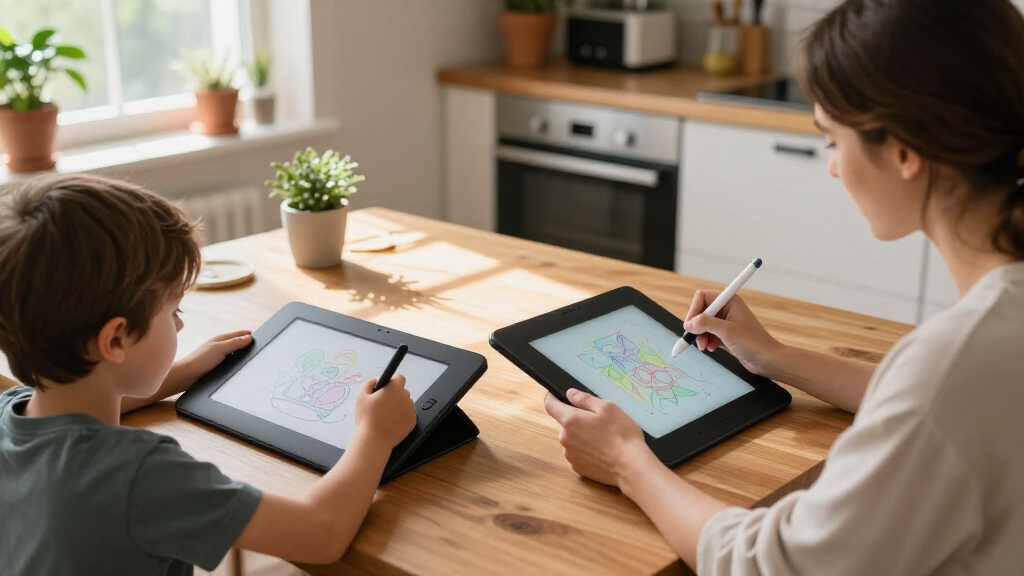
How We Picked
In selecting these digital drawing tablets for beginners, I prioritized ease of use, affordability, and core features like pressure sensitivity and drawing area. Devices that offer a good balance of performance without overwhelming new users received higher rankings. Portability and standalone functionality were also key considerations, as many beginners prefer simple, all-in-one solutions. I also evaluated build quality, included software, and user reviews to ensure each product provides reliable value. The ranking reflects a combination of these factors, aiming to guide new artists toward options that are accessible yet capable of growing with their skills.Factors to Consider When Choosing Digital Drawing Tablets For Beginners
Choosing the right digital drawing tablet as a beginner involves balancing several factors. While price is often the first consideration, focusing solely on cost can lead to missing out on features that improve your drawing experience. Understanding your needs—such as portability, screen vs. non-screen models, and pressure sensitivity—helps narrow options. It’s also worth considering the learning curve and software compatibility to ensure your new device integrates smoothly into your creative workflow. Avoid common pitfalls like overpaying for features you won’t use or selecting models that are too complex for your skill level.Portability and Size
For beginners, portability might be a priority, especially if you plan to draw on the go or have limited desk space. Smaller tablets are easy to carry and store but often have less drawing area, which can restrict your creative flow. Larger tablets provide more space for detailed work but can be cumbersome to transport. Consider where you’ll use the device most often to strike the right balance between convenience and workspace. Remember, a device that’s too small may frustrate your ability to develop fine motor skills, while an oversized model might be impractical for casual use.
Screen vs. Non-Screen Models
Screen models offer a direct, intuitive drawing experience, making them appealing for beginners who want immediate visual feedback. However, they generally cost more and can have a steeper learning curve due to calibration and glare issues. Non-screen tablets require connecting to a computer, which might add complexity but often come at a lower price point. If you value simplicity and immediate visual results, a screen tablet like the Huion Kamvas 13 or XP-Pen Artist 12 makes sense. Conversely, if you’re comfortable with working on a separate monitor, non-screen tablets can be a cost-effective choice.
Pressure Sensitivity and Pen Quality
Higher pressure sensitivity (8,192 levels) allows for more nuanced control over line weight and shading, which is vital as you develop your skills. Cheaper models may have fewer levels, resulting in less responsive lines and a less natural feel. The pen’s responsiveness and ergonomics also influence comfort during extended drawing sessions. Investing in a model with a good-quality pen and high sensitivity can make a noticeable difference, especially when trying to learn digital techniques or replicate traditional art styles.
Software Compatibility and Ease of Use
Ensure the tablet you choose is compatible with your preferred creative software like Photoshop, Krita, or Clip Studio Paint. Many beginner models come with bundled software or driver support, but it’s worth confirming compatibility beforehand. Ease of setup and user interface also matter—models with straightforward drivers and minimal lag help keep frustration at bay. Avoid devices with overly complex interfaces or frequent driver issues, as they can hinder your initial learning process and discourage continued use.
Price and Long-Term Value
While sticking to a budget is tempting, investing a bit more can yield better features, longevity, and a more satisfying creative experience. Cheaper tablets might lack essential features like sufficient pressure sensitivity or a comfortable stylus, which can hinder progress. Conversely, overly expensive high-end models might be unnecessary if you’re just starting out. Look for a device that offers a good blend of essential features and durability—this balance ensures you’ll enjoy your tablet now and grow into it over time without needing an immediate upgrade.
Frequently Asked Questions
Can I use a non-screen drawing tablet without a computer?
Yes, some models like the RubensTab T11 Pro and PicassoTab X11 are standalone devices that do not require a computer. These tablets have built-in screens and internal storage, allowing you to draw directly on the device itself. This simplifies the setup process and offers a more portable, all-in-one solution for beginners who want to start drawing immediately without dealing with cables or software installation. However, these models tend to be pricier, so weigh the convenience against your budget and specific needs.
Is higher pressure sensitivity always better for beginners?
Higher pressure sensitivity, such as 8,192 levels, provides more control over your lines and shading, which can enhance your drawing experience as you improve. However, for absolute beginners, extremely high sensitivity might have a slight learning curve or be unnecessary at first. Many entry-level tablets with 4,096 or 8,192 levels offer a noticeable difference in responsiveness without overwhelming new users. Ultimately, choosing a model with at least 4,096 levels ensures you get good feedback while still being accessible for beginners.
Should I prioritize a larger drawing area or portability?
This depends on your drawing habits and space constraints. A larger drawing surface provides more room for detailed work and can help develop your skills more comfortably. However, it can be less portable and take up more desk space. Smaller tablets are easier to carry around but may feel restrictive as your skills grow. If you’re primarily working at a desk, a larger model like the Huion Inspiroy H1060P makes sense. For those who want to sketch on the move, a compact option like the XPPen StarG640 is preferable, even if it means accepting a smaller workspace.
How important is software compatibility for a beginner?
Software compatibility is quite important because it determines whether your tablet will work smoothly with your preferred drawing programs. Most tablets support popular software like Photoshop, Krita, and Clip Studio Paint, but some may have limited driver support or require updates. For beginners, a device with straightforward setup and good driver support reduces frustration and helps keep the focus on learning. Additionally, some tablets come with bundled software, which can be beneficial for those just starting out, providing tools to learn and experiment without extra costs.
Is it worth investing in a premium drawing tablet as a beginner?
Investing in a premium model can be worthwhile if you plan to pursue digital art seriously and want a device that will grow with your skills. Higher-end tablets often feature better screens, more pressure levels, and more responsive pens, which can improve your overall experience. However, for absolute beginners who are just exploring digital art, a mid-range or budget model often provides sufficient features to learn the basics and develop skills. Consider your commitment level and budget—sometimes starting with a less expensive device and upgrading later makes more sense.
Conclusion
For newcomers seeking the best overall experience, the RubensTab T11 Pro offers an excellent balance of standalone functionality and drawing quality. Budget-conscious beginners should consider the XPPen StarG640 for its affordability and simplicity. Those wanting a portable, high-quality screen experience will find the HUION Kamvas 13 (Gen 3) to be a compelling choice. For learners prioritizing ease of use and software compatibility, the Wacom Intuos Small remains a reliable pick. Ultimately, your ideal tablet depends on your budget, space, and how serious you are about developing your digital art skills—these recommendations serve different needs effectively.
Columbus Day / Indigenous Peoples' Day Picks
long weekend sales
As an affiliate, we earn on qualifying purchases.